Check-out
SAFHA - Hotel Manager
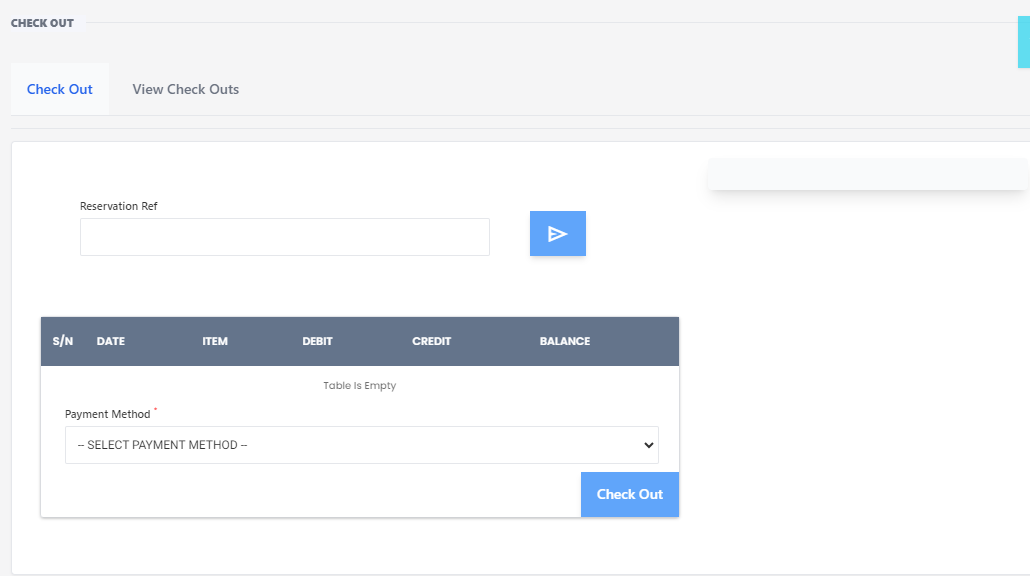
Check-out Page
The Check-out page is designed to facilitate the process of finalizing a guest's stay at the hotel. This page allows staff to manage and complete the check-out process efficiently.
Features
- Reservation Reference: Enter the reservation reference number to retrieve the guest's booking details.
- Transaction Table: Displays a summary of all transactions associated with the reservation, including:
- S/N: Serial number of the transaction.
- DATE: Date of the transaction.
- ITEM: Description of the transaction item.
- DEBIT: Amount debited.
- CREDIT: Amount credited.
- BALANCE: Remaining balance after the transaction.
- Payment Method: Select the payment method from the dropdown menu to settle the balance.
- Check-out Button: Finalize the check-out process by clicking this button.
How to Use
- Enter Reservation Reference: Input the reservation reference number in the provided field and click the search button.
- Review Transactions: Check the transaction table for all charges and payments related to the reservation.
- Select Payment Method: Choose the appropriate payment method from the dropdown menu.
- Finalize Check-out: Click the 'Check-out' button to complete the process.
Notes
- Ensure all transactions are reviewed and correct before finalizing the check-out.
- The system will update the reservation status to 'Checked Out' once the process is completed.
By using the Check-out page, hotel staff can efficiently manage guest departures, ensuring a smooth and accurate check-out process.
View Check-outs Page
The View Check-outs page allows hotel staff to review and manage all guest check-outs within a specified date range. This page provides a comprehensive overview of check-out details, making it easier to track and verify guest departures.
Features
- Date Range Selection: Choose the start and end dates to filter check-out records.
- Submit Button: Click to retrieve check-out records for the selected date range.
- Check-out Table: Displays detailed information about each check-out, including:
- Action: Available actions for each record.
- Room: Room number associated with the check-out.
- Guest: Name of the guest.
- # of Nights: Number of nights the guest stayed.
- Total Rate: Total amount charged for the stay.
- Reservation Type: Type of reservation (e.g., standard, group).
- Arrival Date: Date the guest checked in.
- Departure Date: Date the guest checked out.
- Billing Info: Billing information for the reservation.
- Payment Method: Method used for payment.
How to Use
- Select Date Range: Use the date pickers to choose the start and end dates for the check-out records you want to view.
- Submit: Click the 'Submit' button to retrieve the check-out records for the specified date range.
- Review Records: Examine the details in the check-out table to verify and manage guest departures.
Notes
- Ensure the date range covers the period you are interested in to get accurate records.
- Use the action buttons to perform tasks such as viewing detailed billing information or correcting any discrepancies.
By using the View Check-outs page, hotel staff can efficiently monitor and manage guest check-outs, ensuring a smooth and accurate process.